

To set up video calls for social connection, choose a user-friendly platform like Zoom, FaceTime, or Google Meet that suits everyone’s devices and group size. Test your equipment, guarantee a quiet environment, and send reminders or agendas beforehand. During the call, stay engaged, mute when not speaking, and keep your background tidy. Following these steps will help you create a warm, seamless virtual gathering—continue exploring for more tips to enhance your experience.
Key Takeaways
- Choose an easy-to-use platform like FaceTime, Zoom, or Google Meet suitable for your group size and device compatibility.
- Test your equipment and internet connection beforehand to ensure smooth, interruption-free calls.
- Prepare your environment with good lighting, minimal background distractions, and use headphones for better audio quality.
- Follow video call etiquette by muting when not speaking, being punctual, and engaging actively with participants.
- Send reminders, share agendas if needed, and conclude with polite thanks to foster meaningful social connections.
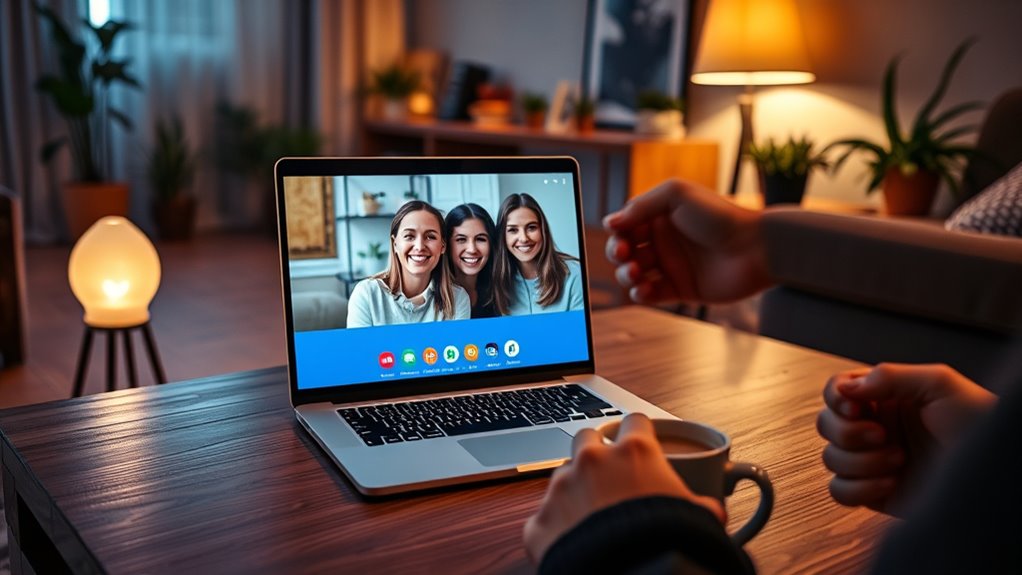
Have you ever wondered how to set up a seamless video call? Whether you’re catching up with friends or connecting with family, knowing the essentials can make your experience smooth and enjoyable. The first step is understanding the importance of choosing the right platform. With so many options out there—Zoom, Skype, Google Meet, FaceTime—you want to pick one that fits your needs. Consider factors like ease of use, compatibility with devices, and whether your contacts already use the platform. For example, if most of your family members have iPhones, FaceTime might be the simplest choice. If you’re connecting with colleagues or larger groups, Zoom or Google Meet could work better due to their stability and features. Remember, selecting the right platform minimizes technical hiccups and guarantees everyone can join without hassle.
Choosing the right platform ensures smooth, hassle-free video calls with family, friends, or colleagues.
Once you’ve chosen your platform, focus on mastering video call etiquette. Good manners go a long way in making your virtual interactions pleasant. Start by testing your equipment ahead of time—check your camera, microphone, and internet connection. This prevents frustrating delays or disruptions during the call. When the call begins, greet everyone warmly, and make eye contact by looking into your camera rather than the screen. Keep your background tidy and well-lit so others can see you clearly, avoiding distractions. Mute yourself when you’re not speaking to reduce background noise, and be attentive—listen actively, avoid multitasking, and show engagement through nods or small affirmations. If you need to step away, briefly excuse yourself, and turn off your camera if appropriate. Remember, maintaining respectful communication and being punctual demonstrates your consideration for others’ time and effort.
Additionally, ensure you’re in a quiet, comfortable space with minimal interruptions. Use headphones if possible to improve audio quality and prevent echoing. Keep your device charged and close by, so you don’t lose connection mid-conversation. Before starting, send a reminder or agenda if applicable, especially for more formal or scheduled meetings. During the call, speak clearly, avoid talking over others, and use the chat feature if you want to share links or comments without interrupting. After the conversation, thank everyone for their time and bid farewell politely. These small gestures reinforce good video call etiquette and foster stronger social bonds. According to security features, utilizing strong passwords and profile management can also help keep your virtual meetings safe from unauthorized access.
Ultimately, setting up a successful video call involves more than just clicking a button. It’s about intentional preparation—choosing the right platform and practicing good manners. When you approach virtual connections thoughtfully, you create a warm, engaging environment that keeps loved ones and colleagues feeling connected, no matter the distance.
Frequently Asked Questions
How Do I Troubleshoot Poor Video Quality During Calls?
To troubleshoot poor video quality during calls, first check your internet bandwidth—if it’s slow, consider upgrading your plan or closing other apps using the internet. Also, adjust your camera positioning to make certain proper lighting and focus, which can improve clarity. Restart your device and update your video app to fix any software glitches. These steps help make sure smoother, clearer video calls, enhancing your social connection experience.
What Are Best Practices for Maintaining Privacy During Video Chats?
Did you know 78% of users worry about privacy during video chats? To protect yourself, always review and adjust your privacy settings before calls. Use platforms that offer strong data encryption to secure your conversations. Avoid sharing sensitive information during video calls, and be cautious about who you invite. These simple steps help make certain your privacy stays intact while you stay connected with friends and family.
How Can I Schedule Recurring Video Calls Easily?
You can easily schedule recurring video calls by using scheduling tools like Calendly or Doodle, which streamline the process. Integrate these tools with your calendar, such as Google Calendar or Outlook, to automatically set up and send reminders for your meetings. This way, you won’t have to manually reschedule each time, ensuring your social connections stay consistent and hassle-free.
What Accessories Improve Video Call Experience?
Did you know 82% of people say video quality impacts their connection? To improve your experience, invest in camera improvements like a high-quality webcam or lens. Lighting enhancements, such as ring lights or softbox lights, make your face clearer and more vibrant. These accessories guarantee you look your best, boost confidence, and make conversations more engaging, helping you stay connected without technical distractions.
How Do I Handle Technical Issues With Different Devices?
When handling technical issues across different devices, start by checking device compatibility to make certain your hardware supports the app you’re using. Keep your app updated to fix bugs and improve performance. Restart your device if problems persist, and try reinstalling the app. If issues continue, consult the app’s support resources or update your device’s operating system. This proactive approach helps you maintain smooth video calls regardless of device differences.
Conclusion
So, now you’re a pro at setting up video calls—ready to conquer loneliness or just show off your new background. Just remember, no matter how many filters you use, nothing beats real human connection. But hey, if all else fails, you can always pretend your Wi-Fi hiccuped just as your boss joins the call. Cheers to staying “connected,” one pixelated moment at a time. Happy chatting—may your Wi-Fi be forever strong!