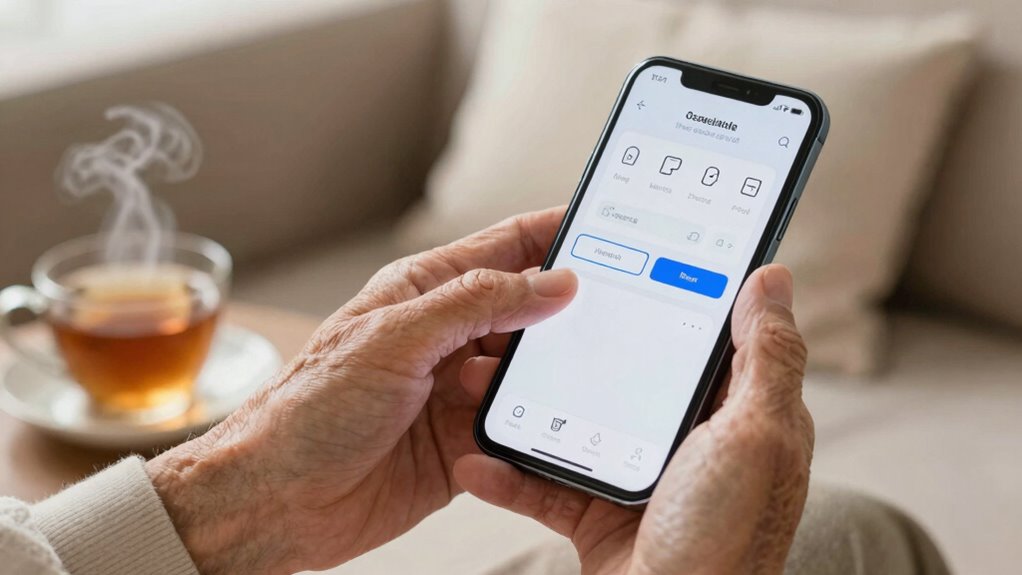
To make smartphones easier for seniors, start by adjusting display settings like increasing font size and brightness for better visibility. Use accessibility features to customize gestures and modify touch sensitivity. Manage notifications by prioritizing important apps and silencing non-essentials to reduce clutter. Set up emergency contacts for quick access and organize apps for simple use. By making these adjustments, you can enhance usability markedly. There’s more to discover that can further simplify your smartphone experience.
Key Takeaways
- Increase font size and choose high contrast colors to enhance readability for seniors.
- Enable accessibility features like swipe gestures and voice commands for intuitive navigation.
- Set longer display timeout and adjust screen brightness for comfortable viewing in various lighting.
- Create and regularly update an emergency contacts list accessible from the lock screen.
- Use medication reminder apps to help track prescriptions and health schedules effectively.
Master Smartphone Navigation Basics

How can you make smartphone navigation simpler? Start by mastering swipe gestures. These intuitive movements let you easily scroll through apps, photos, and settings. Practice swiping left or right to switch between screens, and swipe up for quick access to notifications.
Next, adjust your touch sensitivity. If your screen feels unresponsive, it may be set too low. Increasing it guarantees every tap registers, making navigation smoother. Exploring home‑care techniques for your device can also help maintain optimal responsiveness and longevity.
Don’t hesitate to explore your device’s settings to customize gestures and sensitivity to fit your comfort level. With a little practice, you’ll find navigating your smartphone becomes second nature. Embracing smartphone accessibility features can further enhance your experience and make using your device even easier.
How to Adjust Smartphone Display Settings for Better Visibility
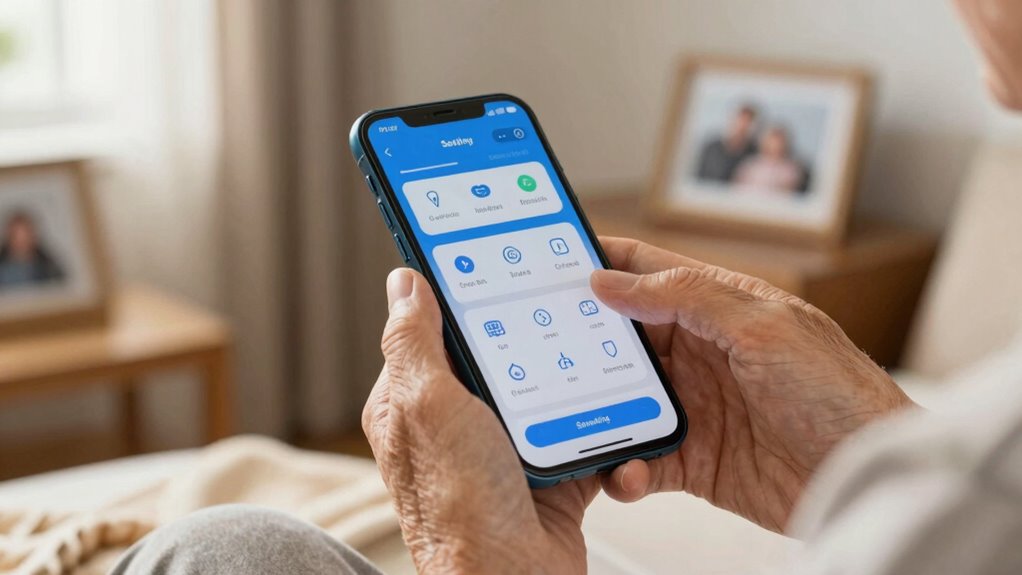
Adjusting your smartphone display settings can greatly enhance visibility, making it easier to read texts and navigate apps. Here are some key adjustments you can make:
| Setting | Description |
|---|---|
| Font Size | Increase size for easier reading |
| Color Contrast | Choose high contrast for clarity |
| Screen Brightness | Adjust brightness for better visibility in various lighting |
| Display Timeout | Set a longer timeout to avoid constant screen activation |
| Zoom Settings | Enable zoom for a closer look |
| Night Mode | Reduce blue light for nighttime use |
Additionally, exploring display customization options can help tailor your phone’s appearance to your preferences, making it even more user-friendly.
Make Your Phone Easier to Use With Accessibility Features

While smartphones can sometimes feel overwhelming, utilizing accessibility features can make them much easier to navigate. One great option is voice accessibility, which allows you to control your phone using voice commands. This feature can help you make calls, send texts, or even open apps without needing to tap the screen. Additionally, screen magnification can greatly enhance your experience. By zooming in on text and images, you can read and view content more comfortably, reducing eye strain. To enable these features, go to your phone’s settings and look for accessibility options. Experiment with different settings until you find what works best for you, making your smartphone experience smoother and more enjoyable.
Managing Notifications for Clarity
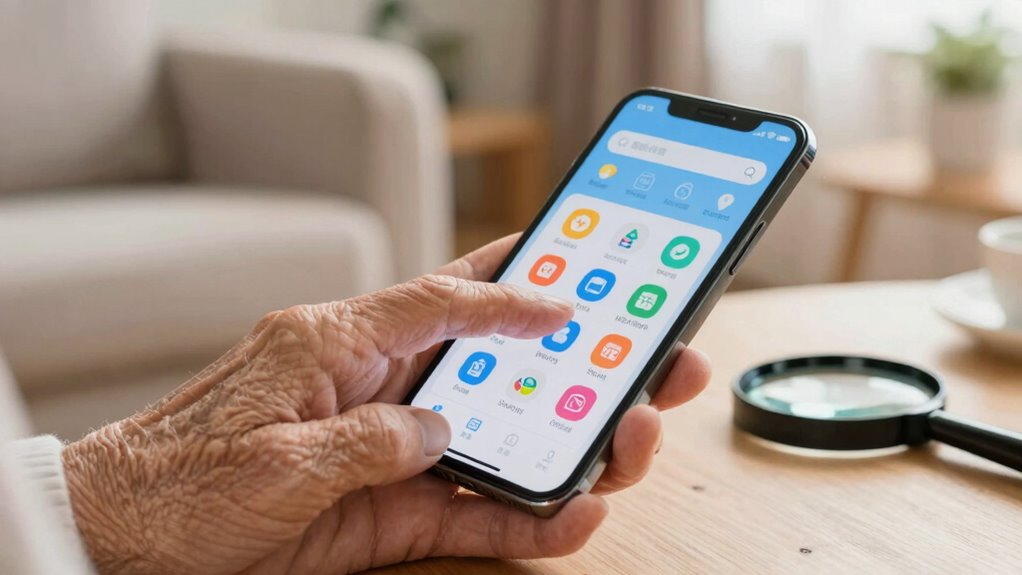
After exploring accessibility features, managing notifications can further enhance your smartphone experience. By prioritizing your notifications, you can focus on what truly matters and reduce distractions. Here are some tips to help you manage notifications effectively:
Enhancing your smartphone experience starts with managing notifications—prioritize alerts to focus on what truly matters.
- Set notification prioritization for important apps, ensuring vital alerts come through first.
- Use silent mode during specific times to avoid interruptions while still receiving notifications.
- Customize sound settings for different apps to easily identify messages without looking.
- Turn off non-essential notifications to declutter your screen and minimize stress.
- Additionally, consider exploring indoor air quality notification settings to stay informed about your home’s environment and ensure a healthy living space. Staying aware of the microplastics in dust can help you take steps to improve indoor air quality for better health. Being mindful of airborne allergens can further support a healthier home environment.
Setting Up Emergency Contacts for Quick Access
Having quick access to emergency contacts can be crucial during a crisis. To set this up on your smartphone, start by opening your contacts app. Look for the option to add favorites or create a dedicated emergency contacts list. Choose close family members or friends who can help in urgent situations. You can also label these contacts with a recognizable tag, making them easier to find. Ensuring your contacts are organized with smart programming can help you update and manage them more efficiently. For added safety, consider adding your emergency contacts to your phone’s lock screen settings. This way, even if your phone is locked, anyone can access these important numbers. Regularly check and update this list to guarantee it’s current. With these steps, you’ll have peace of mind knowing you can reach your emergency contacts quickly.
How Voice Assistants Simplify Smartphone Use?
Voice assistants can significantly simplify smartphone use, especially for seniors who may find technology intimidating. By utilizing voice commands, you can interact with your phone in a more accessible way. This hands-free capability allows you to perform various tasks without needing to navigate complicated menus.
- Make calls: Just say the contact’s name.
- Send messages: Dictate your text instead of typing.
- Set reminders: Use your voice to set important alerts.
- Get information: Ask questions without searching online.
These features not only enhance convenience but also boost confidence in using technology. Embracing voice assistants can make your smartphone experience more enjoyable and less overwhelming, ensuring you stay connected effortlessly.
Organizing Apps for Simple Access and Use

To make using your smartphone easier, organizing apps for simple access is essential. Start by customizing your home screen with the most frequently used apps. Group similar apps together through app categorization; for instance, place all communication apps in one folder and entertainment apps in another. This way, you won’t waste time searching for what you need.
Consider using larger icons or widgets for key apps to enhance visibility. You can also remove any unnecessary apps, keeping your home screen clutter-free. Don’t forget to arrange your apps in a logical order, so you can quickly find what you need. By organizing your apps effectively, you’ll make your smartphone experience smoother and more enjoyable.
Connecting With Family and Friends Through Shared Features
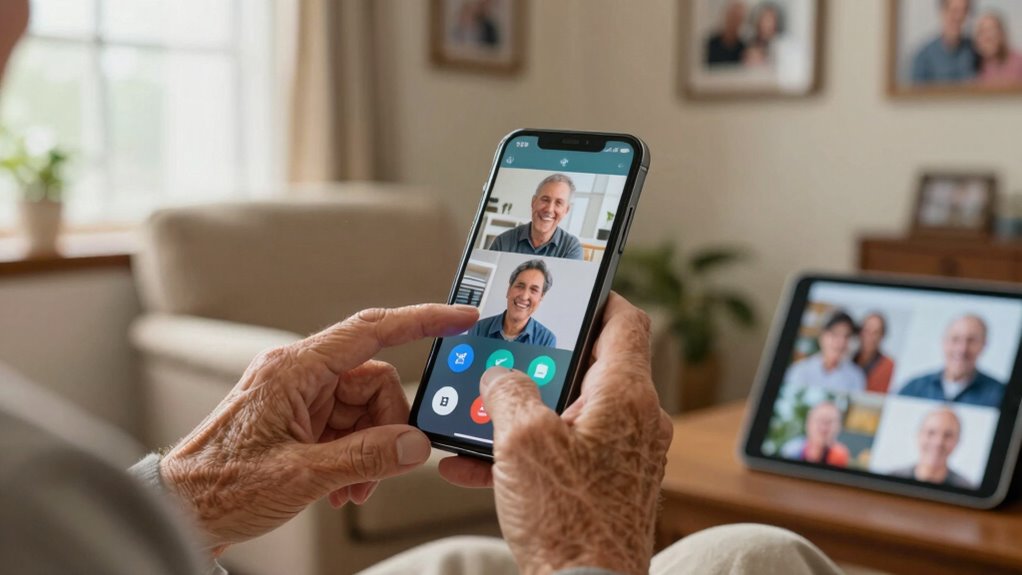
Once your apps are organized, staying connected with family and friends becomes much easier. You can utilize various shared features that enhance your communication experience. Here are some ways to connect:
- Video calling: Use apps like Zoom or FaceTime for face-to-face chats.
- Family sharing: Share apps, music, and even locations with family members.
- Photo sharing: Create digital albums to share treasured memories effortlessly.
- Messaging apps: Stay in touch through text or voice messages anytime.
- Using these tools, you can also explore connected home fitness features that promote overall wellness and activity, encouraging a healthier lifestyle. Additionally, many of these apps incorporate relationship strategies to help maintain strong connections, even during disagreements or misunderstandings.
Tips for Securing Your Phone and Personal Information

As you navigate your smartphone, securing your personal information is essential to protecting your privacy. Start with strong password protection; use complex passwords and enable two-factor authentication for an extra layer of security. Always check app permissions to confirm apps only access the data they need. Be aware of phishing attempts—don’t click on suspicious links or provide personal information to unverified sources. Enable data encryption to keep your information safe from prying eyes, and make certain you have secure backups in case of loss or theft. Adjust your privacy settings to control location tracking and who can see your data. To further enhance your safety, consider cybersecurity best practices and smart home privacy and security practices to create a comprehensive approach to protecting your digital environment. Recognizing early warning signs of security threats can help you respond quickly and prevent potential issues. Additionally, understanding U.S. tax law updates can help you make informed decisions about digital and financial security. Staying informed about Red and Blue team strategies can also help you recognize potential cyber threats and defend against them effectively. By following these tips, you’ll help safeguard your information and enjoy your smartphone with peace of mind.
Best Apps for Seniors to Enhance Daily Living
Smartphones can considerably enhance daily living for seniors, as they offer a variety of apps designed specifically to address their unique needs. Here are some must-have apps that can make life easier and more enjoyable:
- Medication Reminders: Keep track of your prescriptions and schedules.
- Health Tracking: Monitor essential signs and activity levels effortlessly.
- Social Engagement: Connect with family and friends through social media or messaging apps.
- Recipe Organizers: Store and find your favorite recipes quickly, making meal prep simpler.
- Accessibility Features: Take advantage of smartphone accessibility settings to customize text size, contrast, and voice commands for easier use.
- Many smartphones also include safety features that can alert loved ones or emergency services if needed, adding an extra layer of security. These safety features often utilize toxin-free spaces to ensure that emergency notifications and alerts are accessible without interference. Incorporating early detection of metabolic disorders through health apps can help identify potential issues before they become serious, enabling prompt intervention. Additionally, understanding how recovery routines like foam rolling can support overall health may encourage seniors to stay active and reduce discomfort.
- With tools for fitness coaching, budgeting apps, travel planning, learning tools, memory aids, and even virtual games, you can enrich your daily routine and maintain an active, fulfilling lifestyle.
Frequently Asked Questions
How Can I Extend My Smartphone’s Battery Life?
To extend your smartphone’s battery life, try a few battery optimization tips. Lower your screen brightness and shorten the screen timeout in settings. Turn off background app refresh and location services when you don’t need them. Adjust your charging habits by unplugging your phone once it hits 100% and avoiding letting the battery drop below 20%. These small changes can make a big difference in how long your battery lasts daily.
What Should I Do if My Phone Freezes?
If your phone freezes, don’t panic—try these steps. First, perform a phone reboot by holding down the power button until it restarts. Next, check your app management; close any apps you’re not using to free up memory. If it still freezes, consider uninstalling problematic apps. Finally, keep your phone’s software updated to prevent future issues. You’ll get back to using your phone smoothly in no time!
How Do I Transfer Photos to a Computer?
To transfer photos to your computer, you’ve got a couple of options. If you prefer a cable, connect your phone to the computer using a USB cable, then select the photo transfer option. Alternatively, you can use cloud storage services like Google Drive or Dropbox to upload your photos. Just install the software tools on your computer to sync easily. Choose the method that works best for you!
Can I Use My Smartphone Without Internet Access?
Think of your smartphone as a trusty toolbox; it can still help you even without internet access. Yes, you can use it offline! Many offline apps let you access features like notes and games. Plus, your phone’s emergency features, like flashlight and SOS, work without the internet, ensuring you’re safe. So, don’t worry—your smartphone’s still a handy companion, ready to assist you when you need it most!
What Are the Best Protective Cases for Seniors?
When looking for the best protective cases for seniors, focus on models made from durable materials like silicone or polycarbonate. These cases provide excellent shock absorption. Choose designs with an easy grip to help prevent slips, making it simpler for seniors to hold their phones securely. Look for cases that offer added features like built-in kickstands or screen protectors, enhancing usability and ensuring a safe, accessible smartphone experience.
Conclusion
By customizing your smartphone with these settings, you can make it feel as familiar as an old friend. With clearer displays, easier navigation, and handy accessibility features, you’ll find using your phone a breeze. Plus, staying connected with loved ones and managing your apps can enhance your daily life greatly. So, take a moment to explore these tips, and watch your smartphone transform into a tool that truly serves you well.